Windows 365 (Cloud PCs)
View the current Cloud PCs and their specifications.
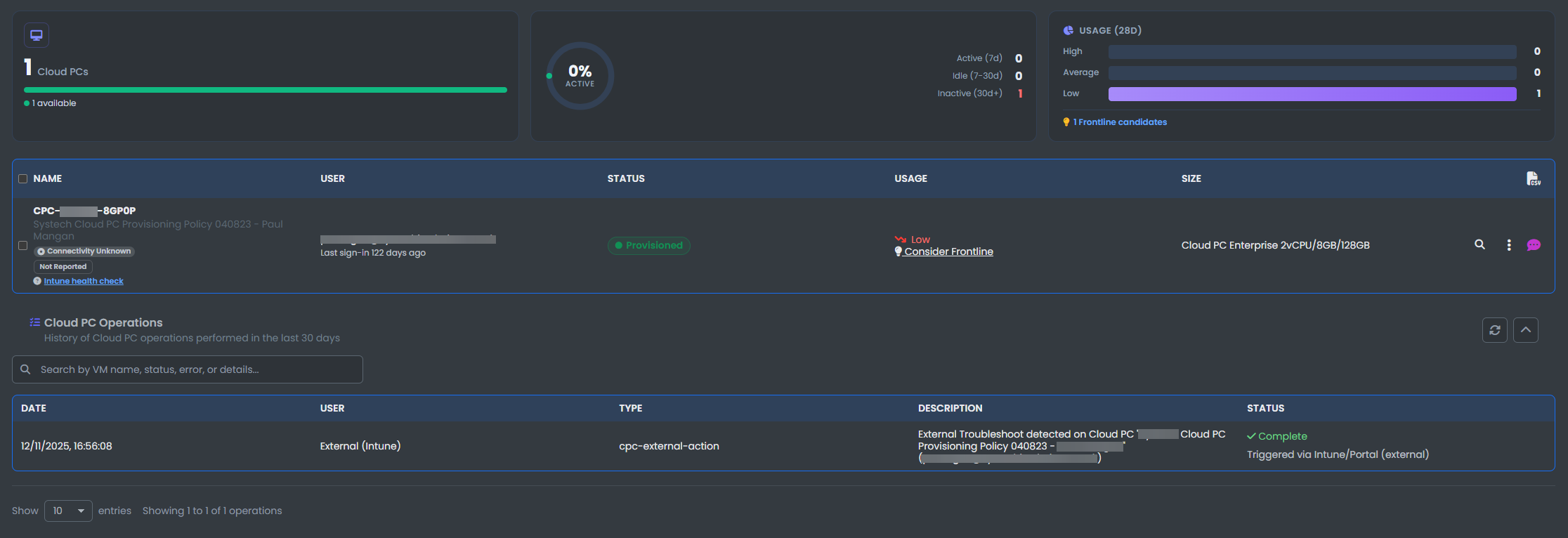
- Name: The name of the Cloud PC.
- User: The user assigned to the Cloud PC.
- status: The current status of the Cloud PC
- Usage: The average usage of the Cloud PC.
- Size: The size of the Cloud PC.
- View Detailed Insights: View detailed insights of the Cloud PC
- Cloud PC Actions: Remove License, Resize, Reboot, Reprovision, Restore, Create Backuo, Update Display Name and Remind me
- Ask EtherAssist: View details on optimizing your Cloud PC and Ask EtherAssist any questions regarding your Cloud PC
View Detailed Insights

Select the View Detailed Insights button to access a comprehensive overview of the selected Cloud PC.
You’ll see summary panels showing overall status, system configuration, and usage trends at a glance:

Explore detailed utilization metrics, including CPU, memory, and network usage over time:
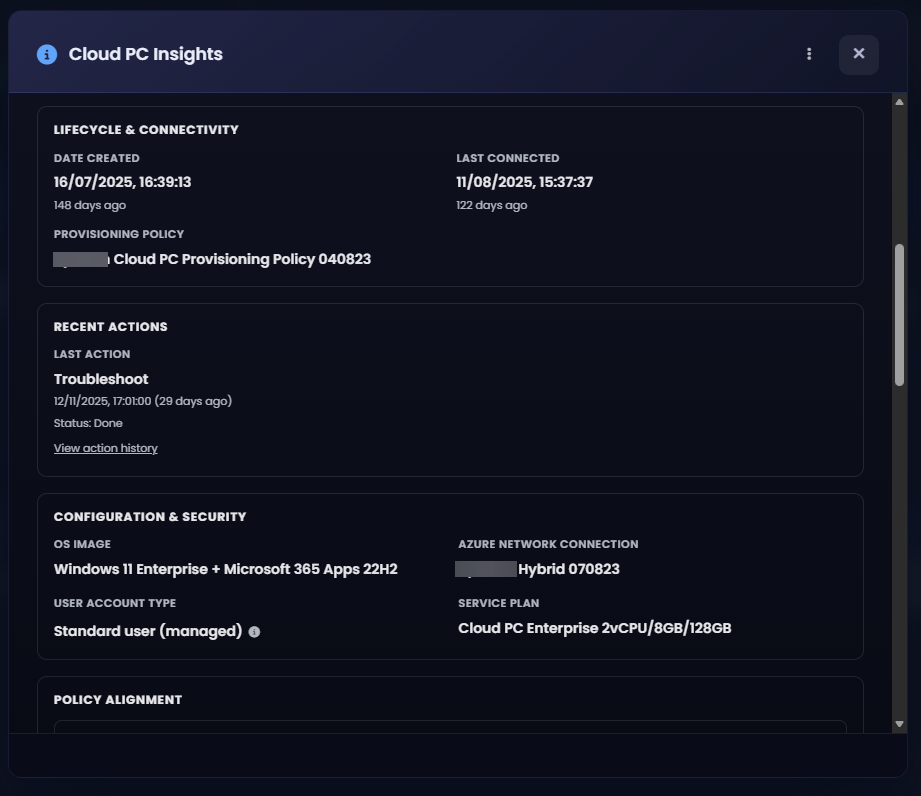
Review health indicators such as operational status, detected issues, and compliance with policies:
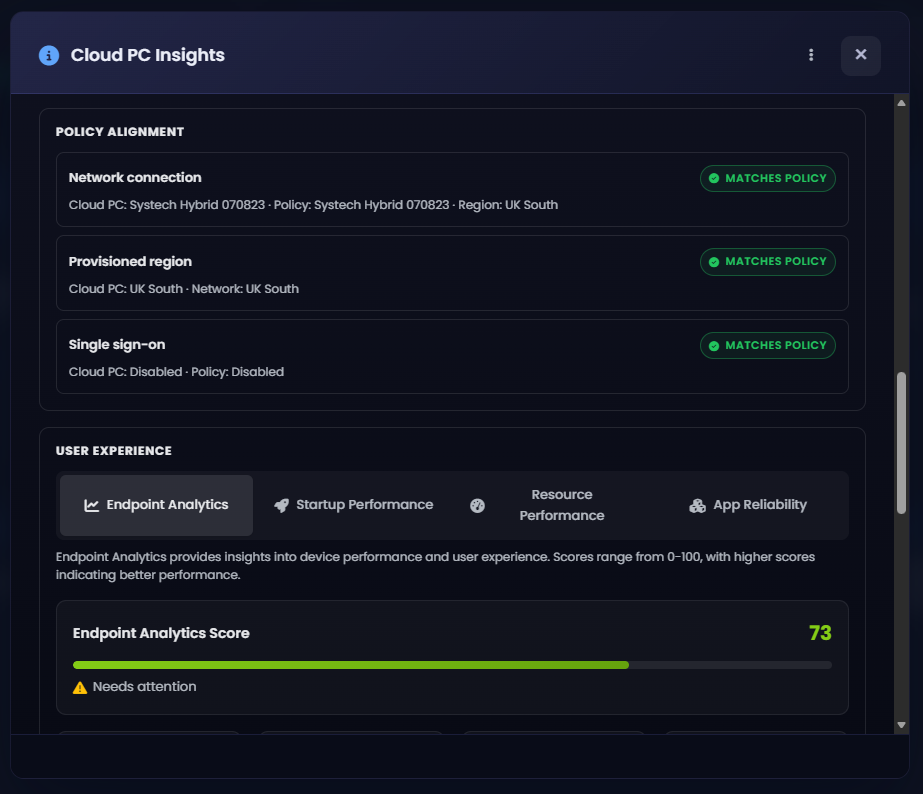
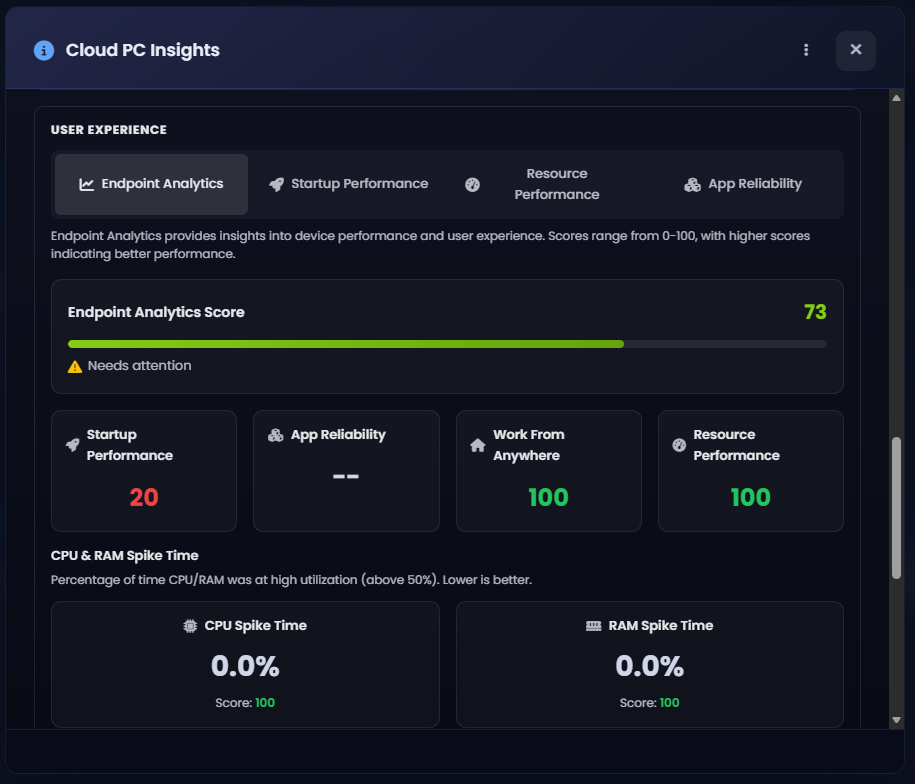
Monitor performance data like resource usage, app responsiveness, and potential bottlenecks:
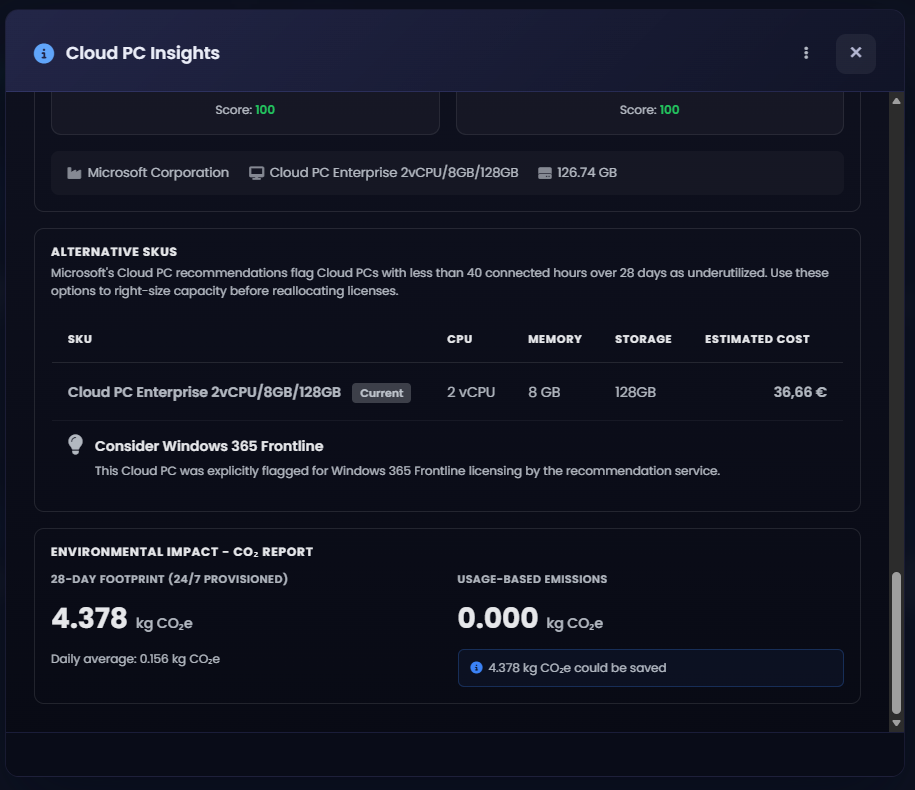
View storage details, disk usage breakdown, available capacity, and active drives for the device:
Manage Cloud PC's

Select a Cloud PC or Select the Three dots to Manage the Cloud PC, In these Menus you can:
- Operations:
- Restart
- Troubleshoot
- Management
- Reprovision
- Restore
- Resize
- Create Backup
- Remove License
- Destructive
- End Grace Period
Manual Setup and Configure
Navigate to Windows 365 in the left sidebar then select the "Setup & Configure" then Configure
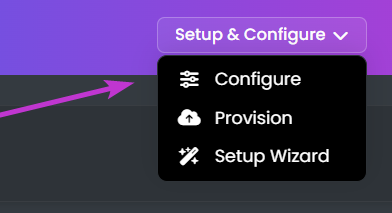
Here you can choose to:
- Configure:
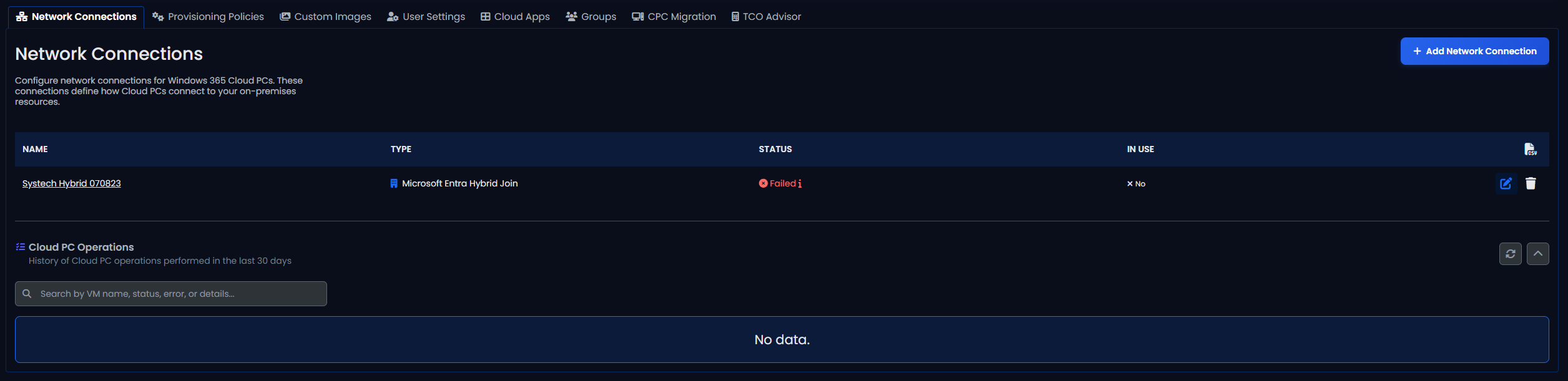
- Network Connections: Configure network connections for Windows 365 Cloud PCs
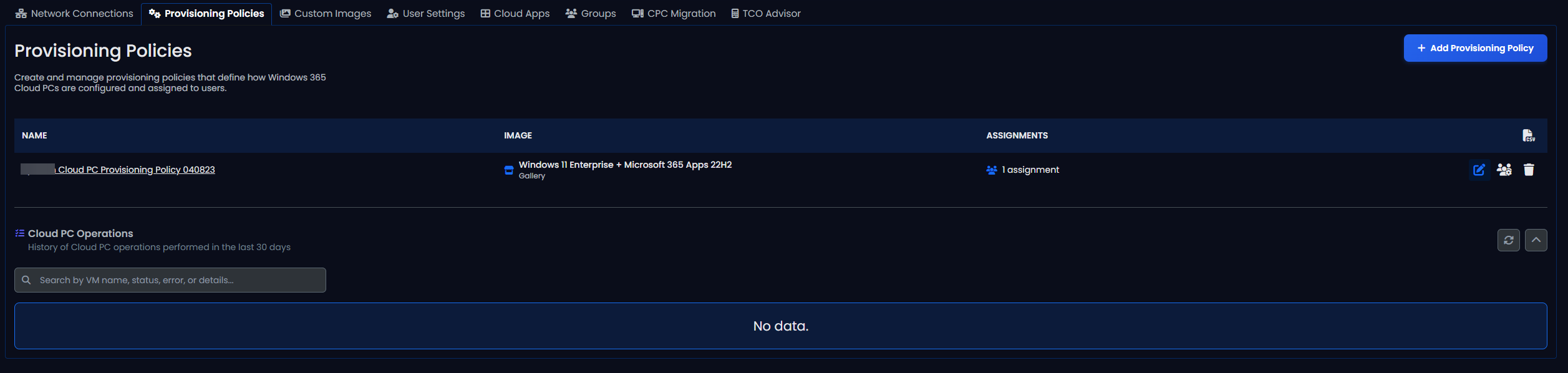
- Provisioning Policies: Create and manage provisioning policies that define how Windows 365 Cloud PCs are configured and assigned to users.
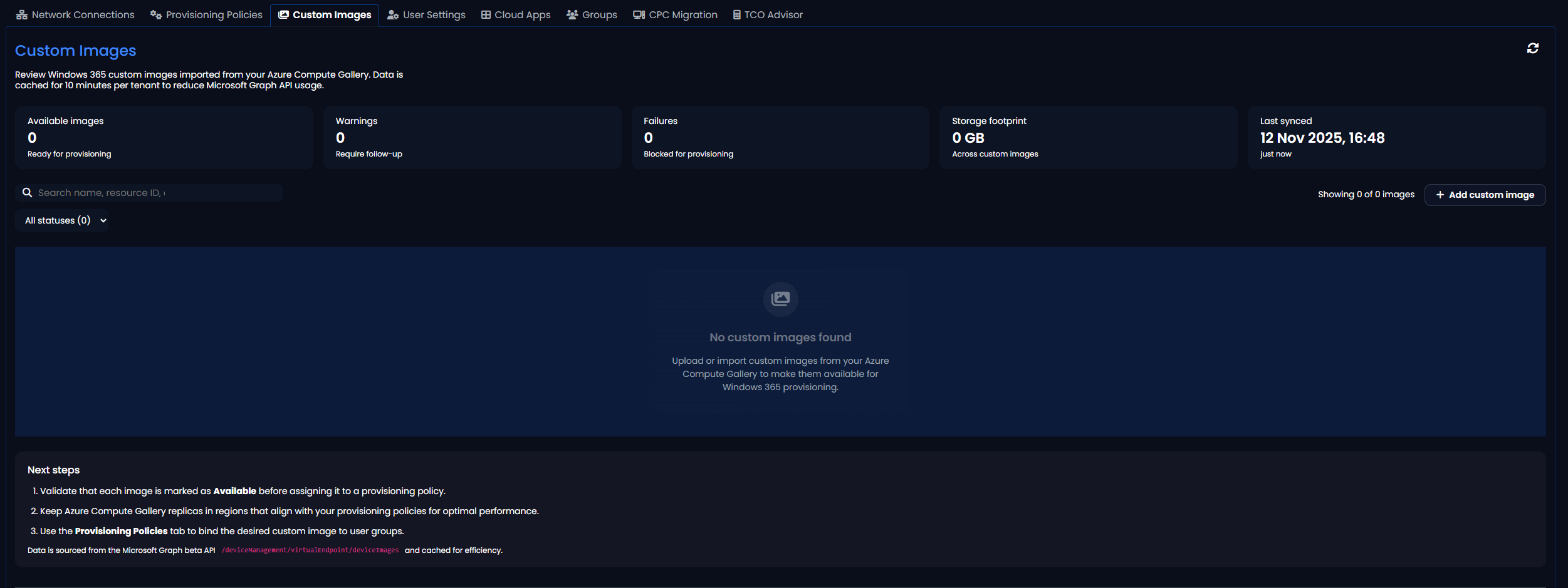
- Custom Images: Review Windows 365 custom images imported from your Azure Compute Gallery.
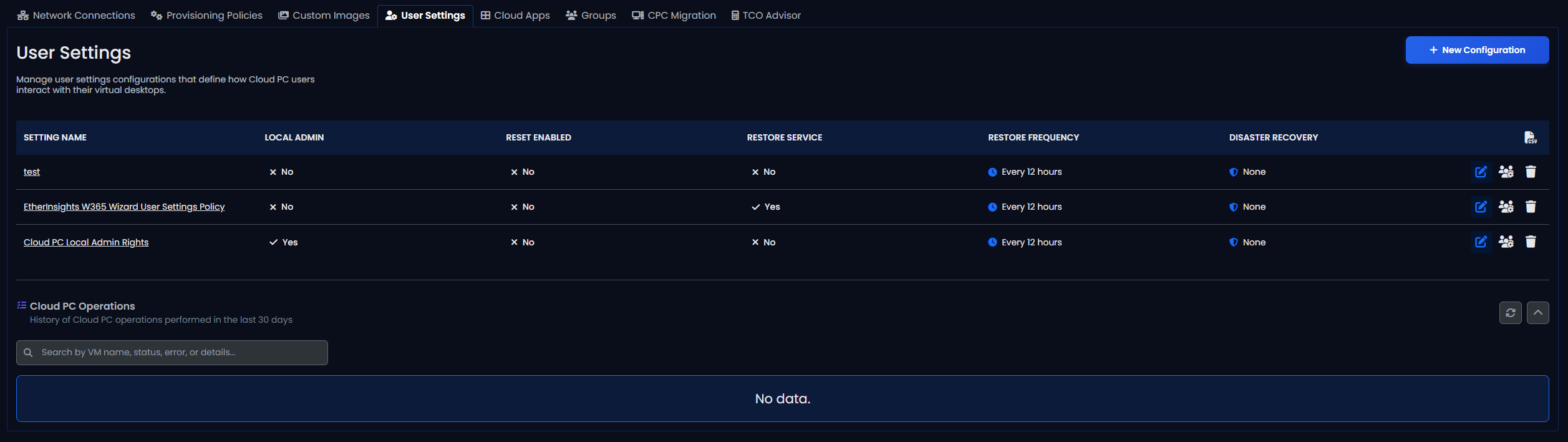
- User Settings: Manage user settings configurations that define how Cloud PC users interact with their virtual desktops.
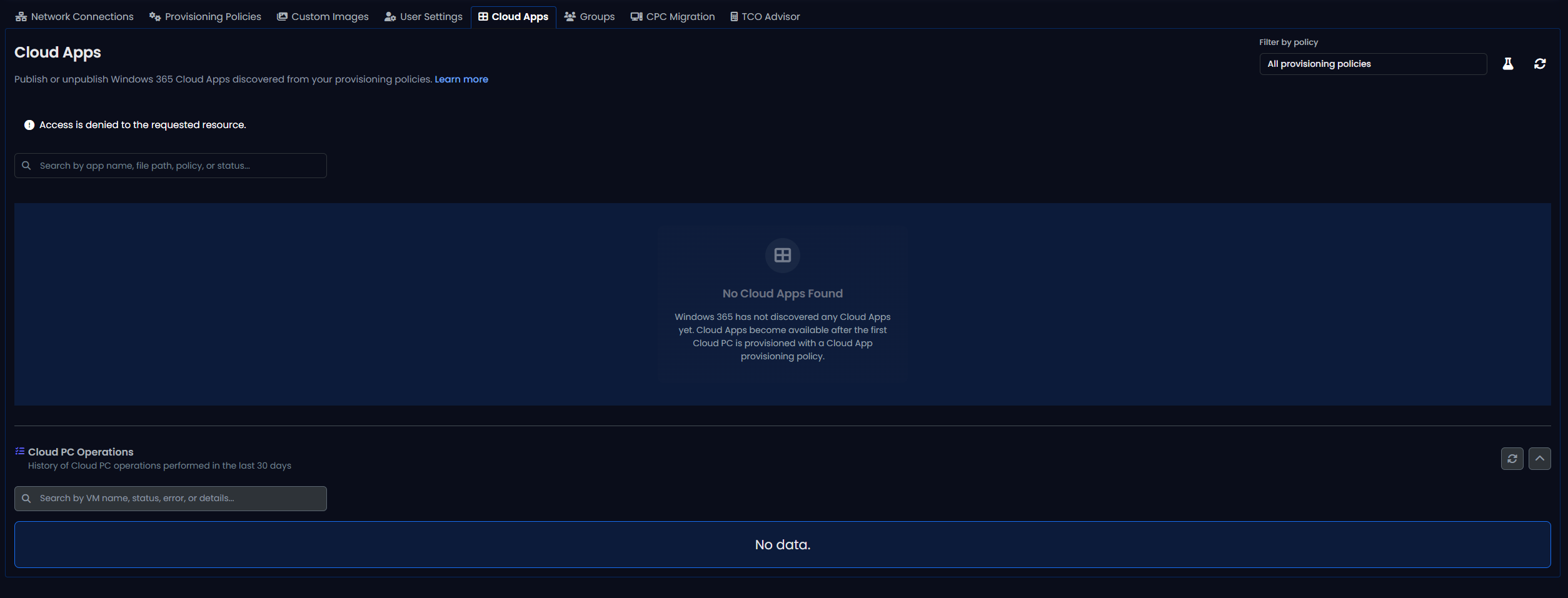
- Cloud Apps: Publish or unpublish Windows 365 Cloud Apps discovered from your provisioning policies.
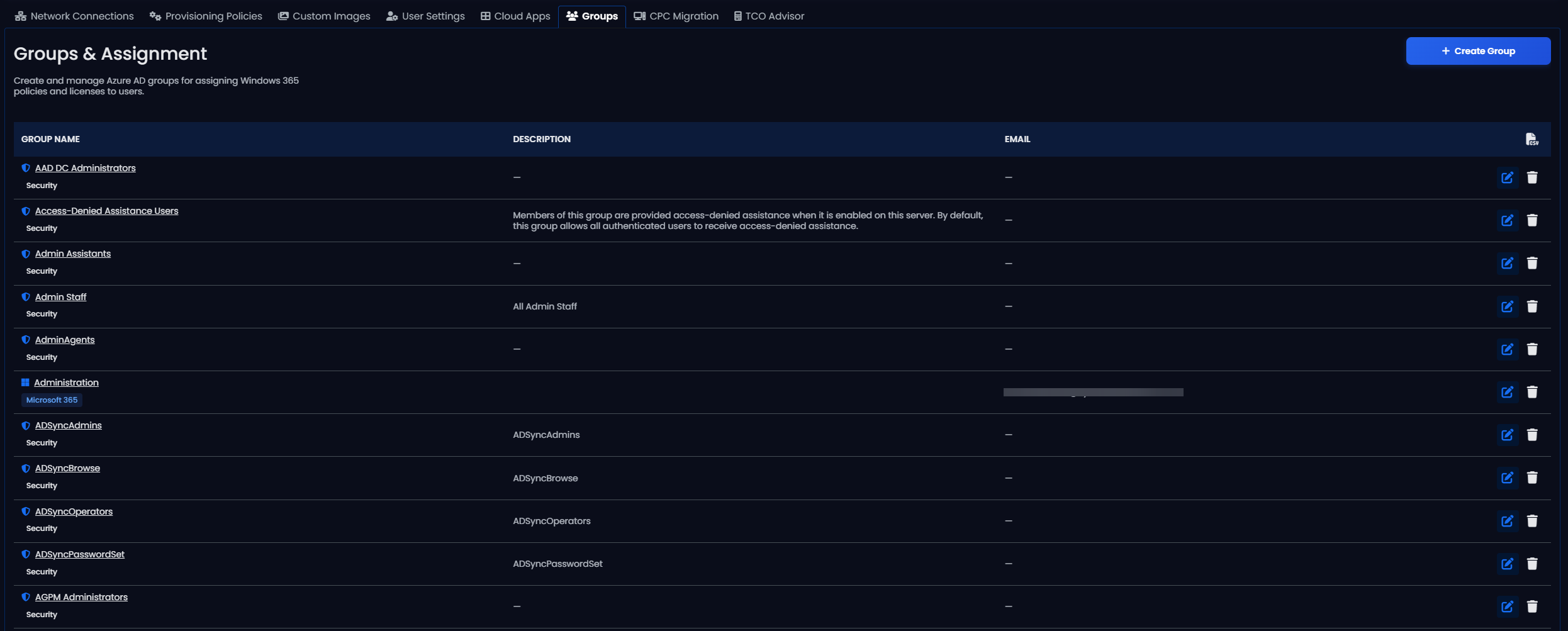
- Groups: Create and manage Azure AD groups for assigning Windows 365 policies and licenses to users.
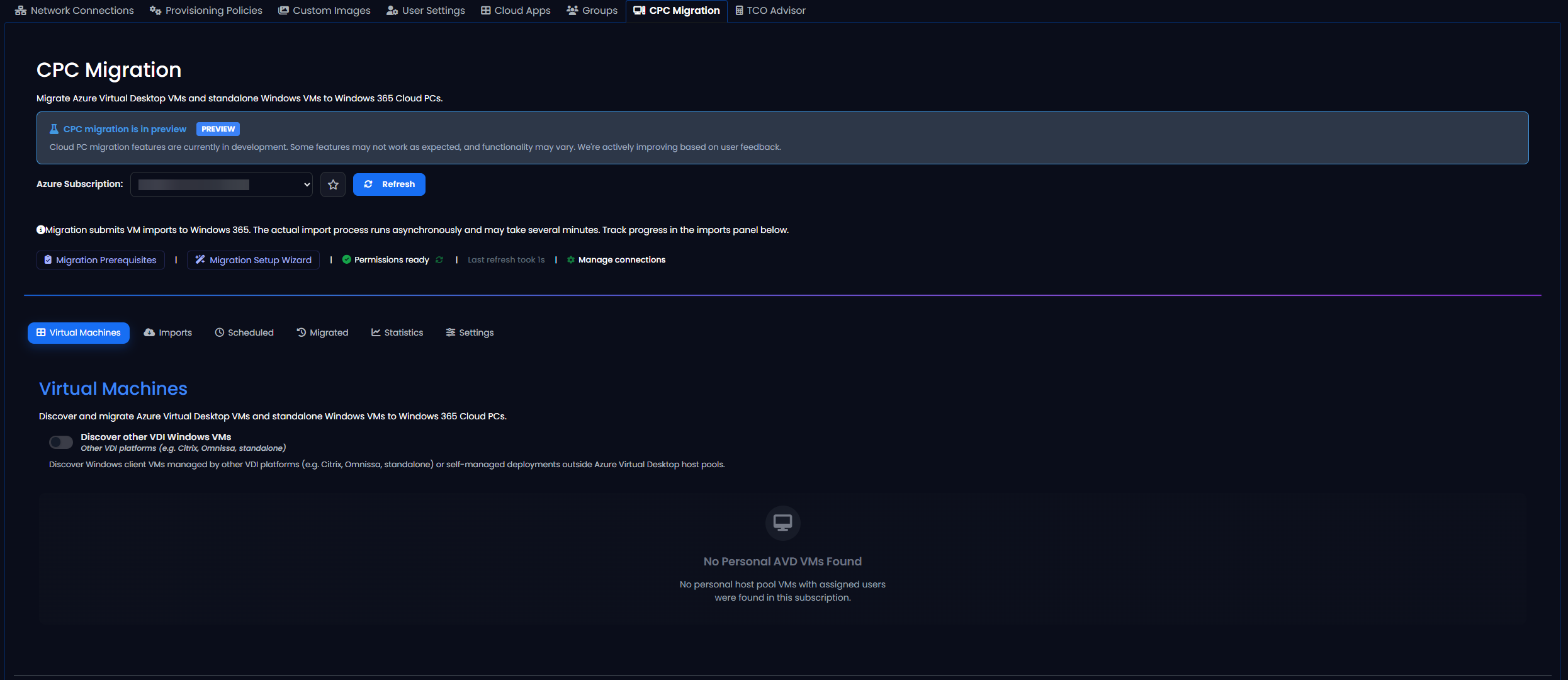
- CPC Migration: Migrate Azure Virtual Desktop VMs and standalone Windows VMs to Windows 365 Cloud PCs.
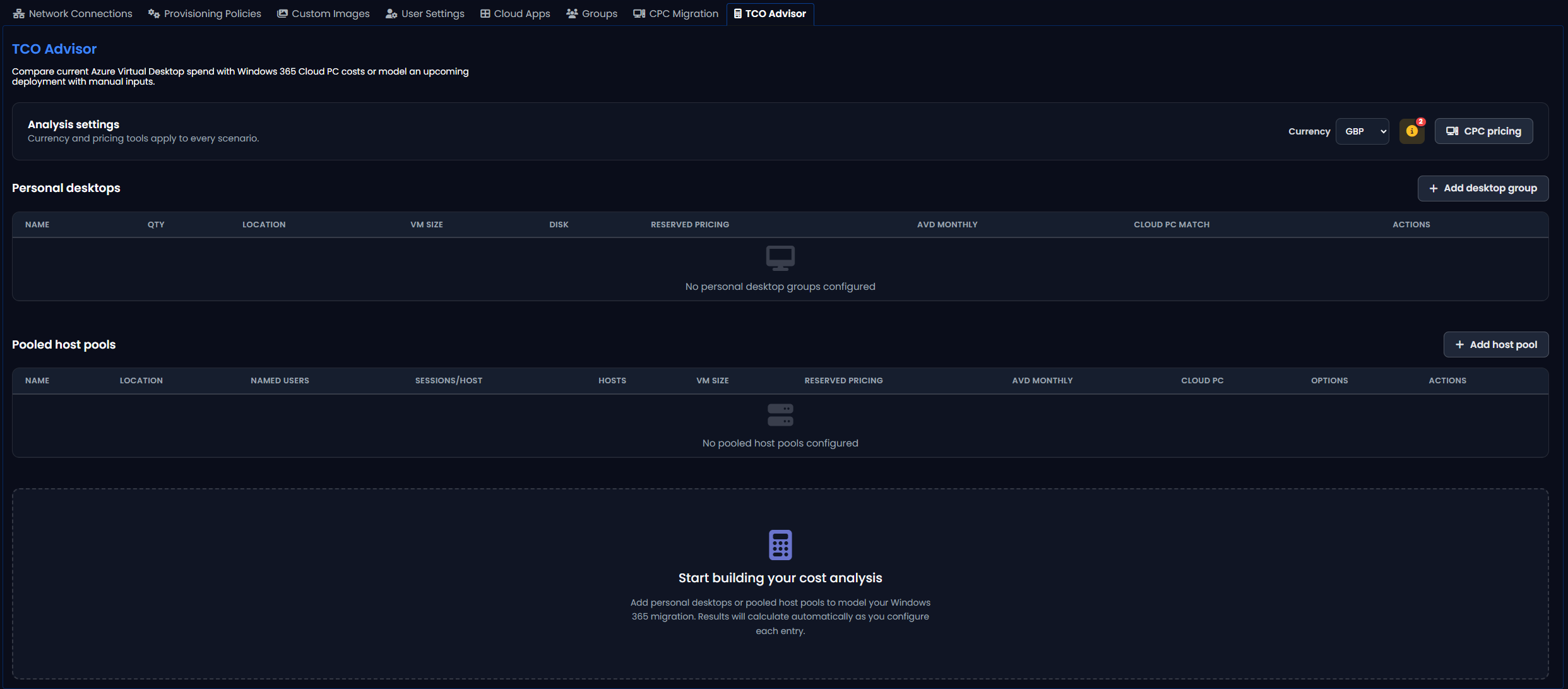
- TCO Advisor: Compare current Azure Virtual Desktop spend with Windows 365 Cloud PC costs or model an upcoming deployment with manual inputs.
- Network Connections: Configure network connections for Windows 365 Cloud PCs
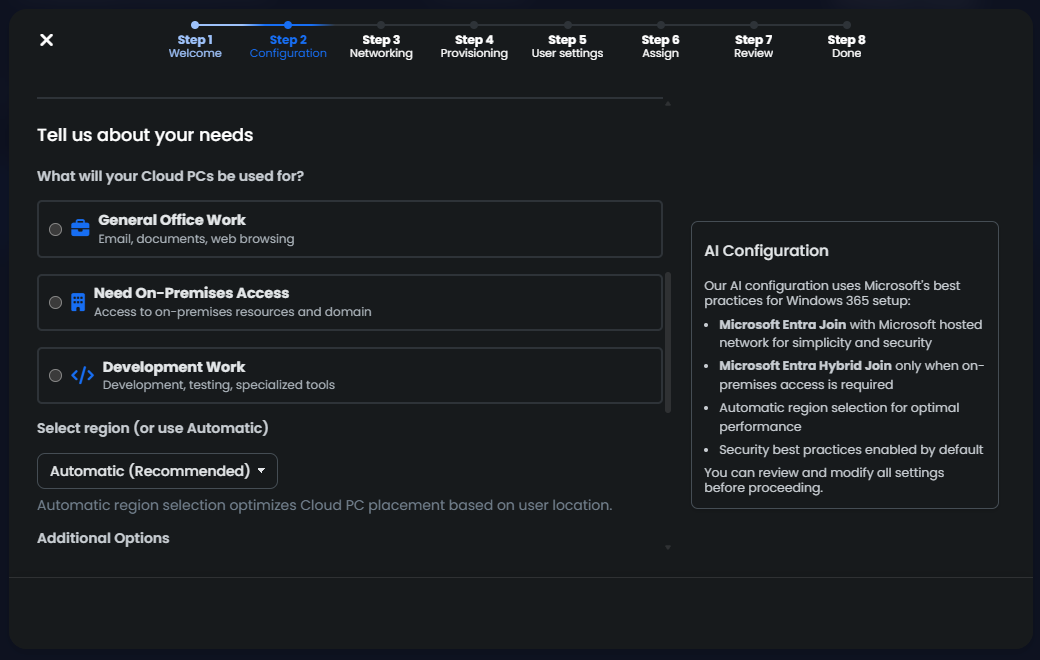
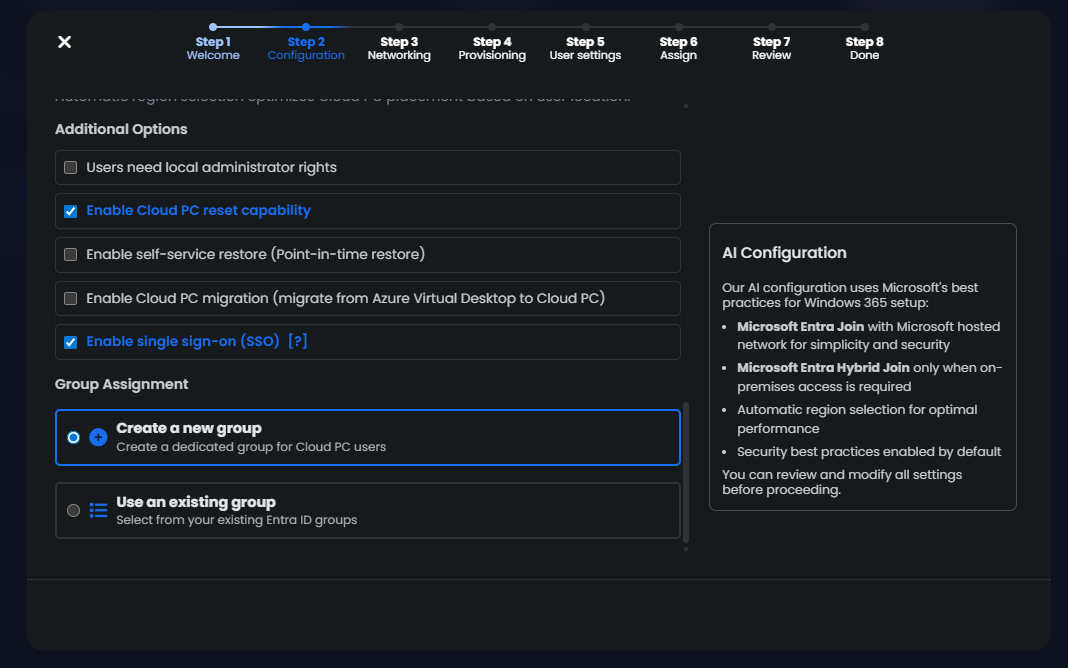
Setup Wizard
Navigate to Windows 365 in the left sidebar then select the "Setup Wizard"
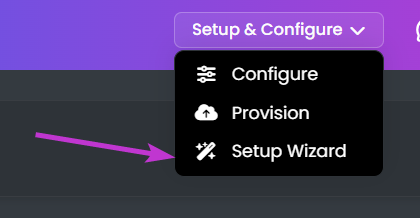
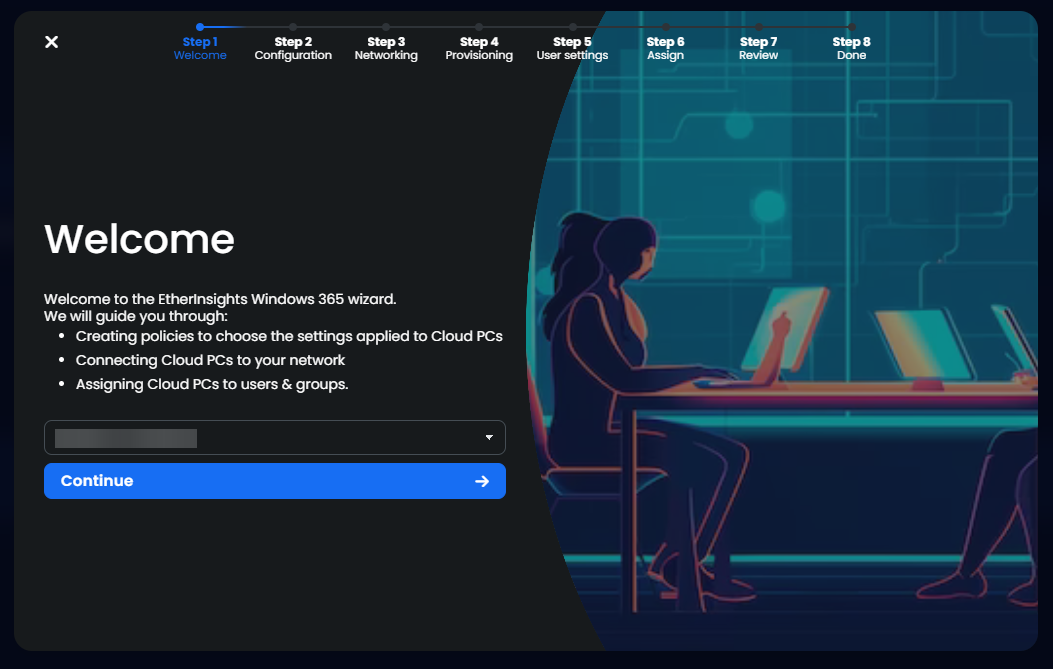
you will then be presented with the setup Wizard, Choose your organization and select continue.
Here you will have the option to setup using an AI powered Configuration or to use your own manual configuration.
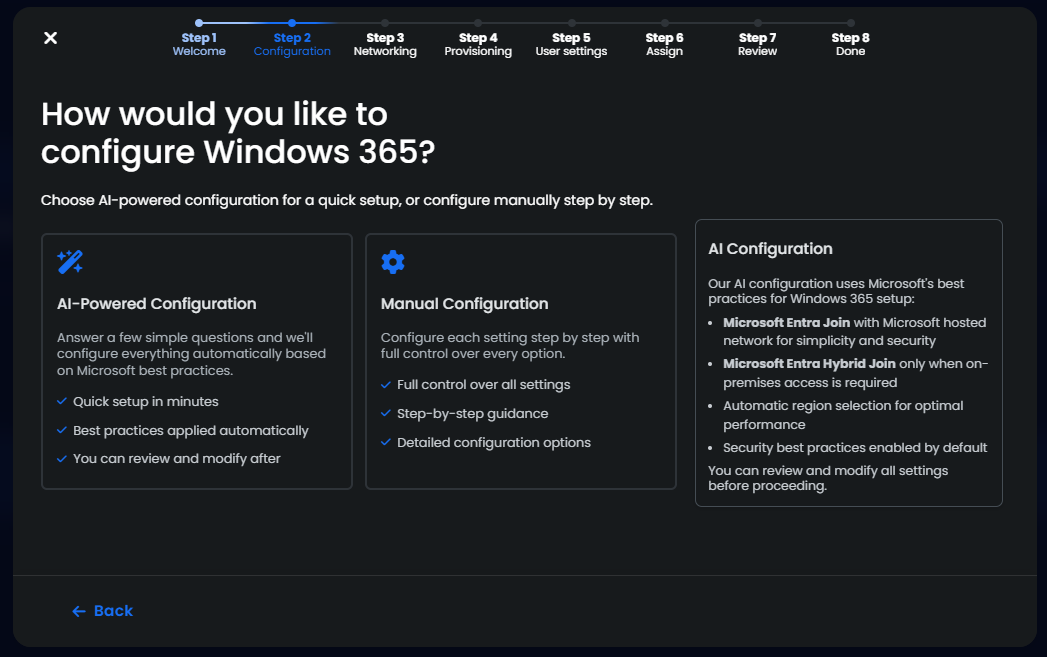
Ai Configuration