Microsoft 365
Dashboard Overview

Inside the Dashboard you can view:
- Current Users: Shows the active users, inactive and unlicensed users.
- Financial Overview: Financial Overview shows a brief overview of the finances for your organization including the Annual and Monthly cost and the Monthly Potential Savings.
- Carbon Emissions: Shows the current carbon emissions of the organisation.
AI Insights
Select Generate to generate an AI Insights report, this report is used to summarize the page including the A summary of license utilization, Key insights, Cost Optimization Opportunities, Estimated cost savings and a summary of recommendations.

Licenses
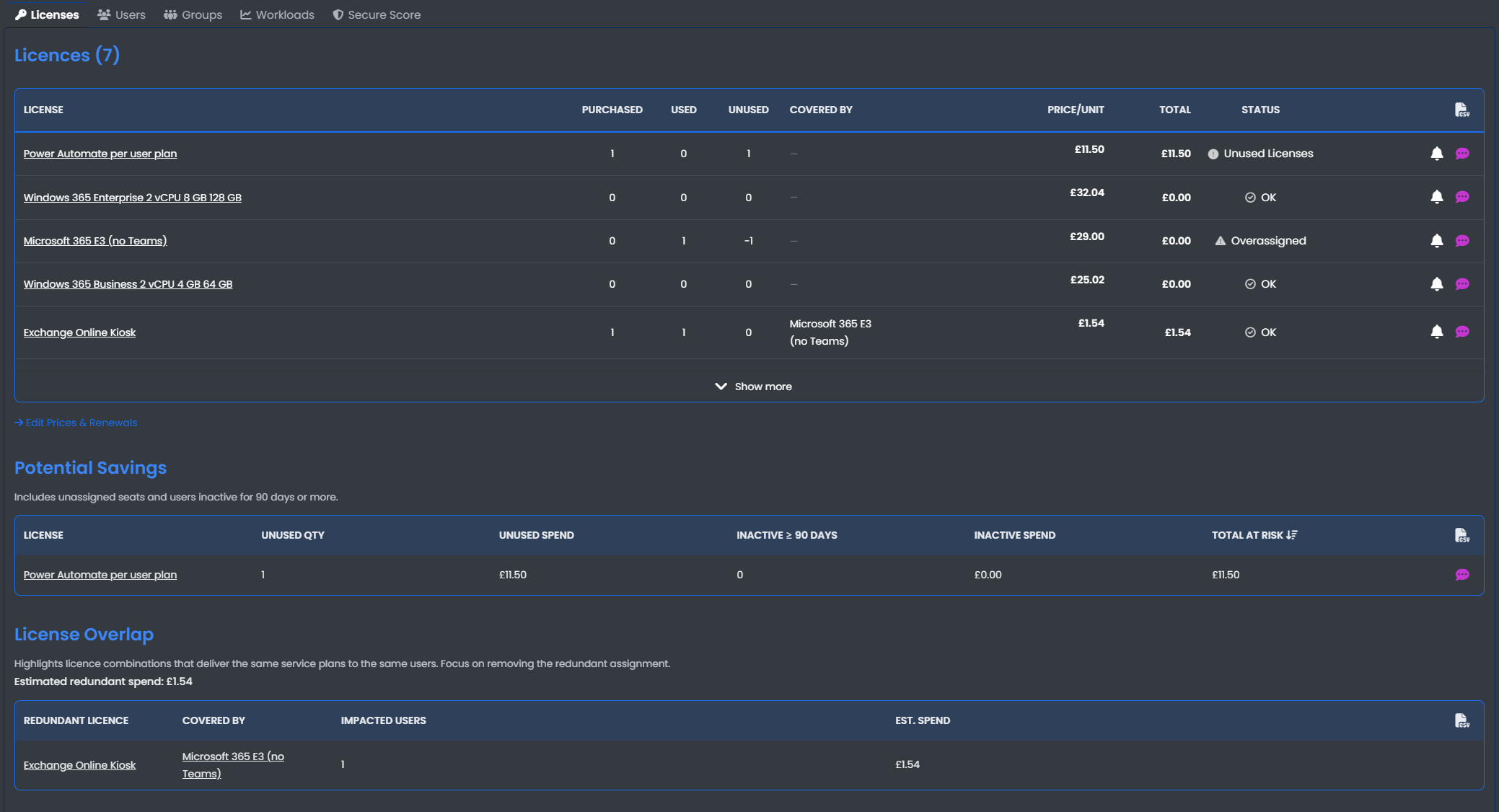
View your current Licenses, Potential Savings, License Overlaps and Trial/Free Licenses for your organization:
Licenses
- License: The name of the license purchased.
- Purchased: The amount of license purchased.
- Used: Amount of licenses currently in use.
- Unused: Amount of licenses not currently in use.
- Covered By: The license that this license is covered by or apart of.
- Price/Unit: The cost per unit of license.
- Total: Total cost of all the licenses.
- Status: The current status of the license.
Potential Savings
- License: The name of the license.
- Unused: Amount of licenses not currently in use.
- Inactive ≥ 90 days: The amount of licenses not active in over 90 days.
- Inactive Spend: The amount spent on the unused license.
License Overlap
- Redundant License: The name of the license.
- Covered By: The license that this license is covered by or apart of.
- Impacted Users: The amount of users impacted by this license overlap.
- Estimated Spend: Estimated spend on the License overlap
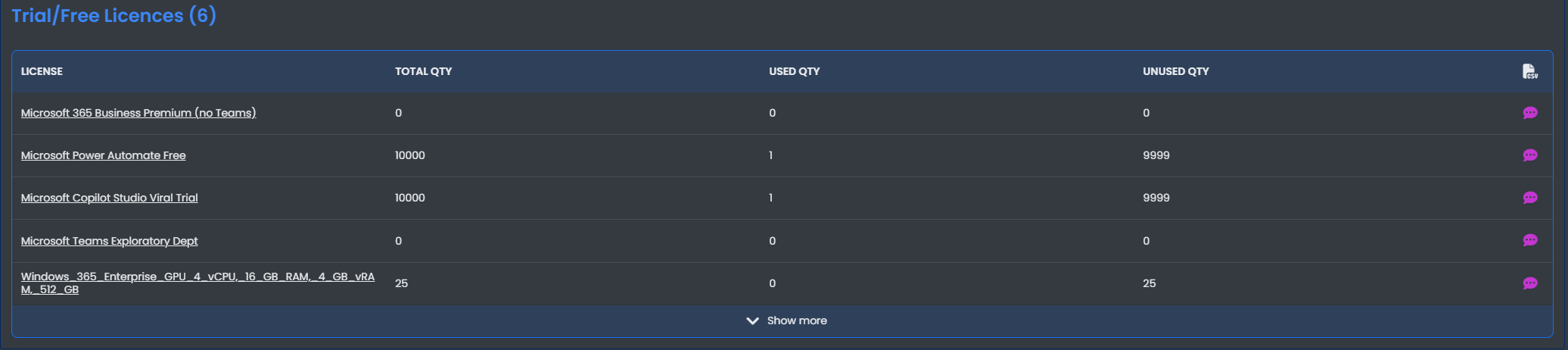
Trial/Free Licenses
- License: The name of the license.
- Total Quantity: Total Quantity of the license available.
- Used Quantity: Total Quantity of licenses currently in use.
- Unused QUantity: Total Quantity of licenses not currently in use.
Users
Users with Licenses
View the Users in your organization and their license statistics:
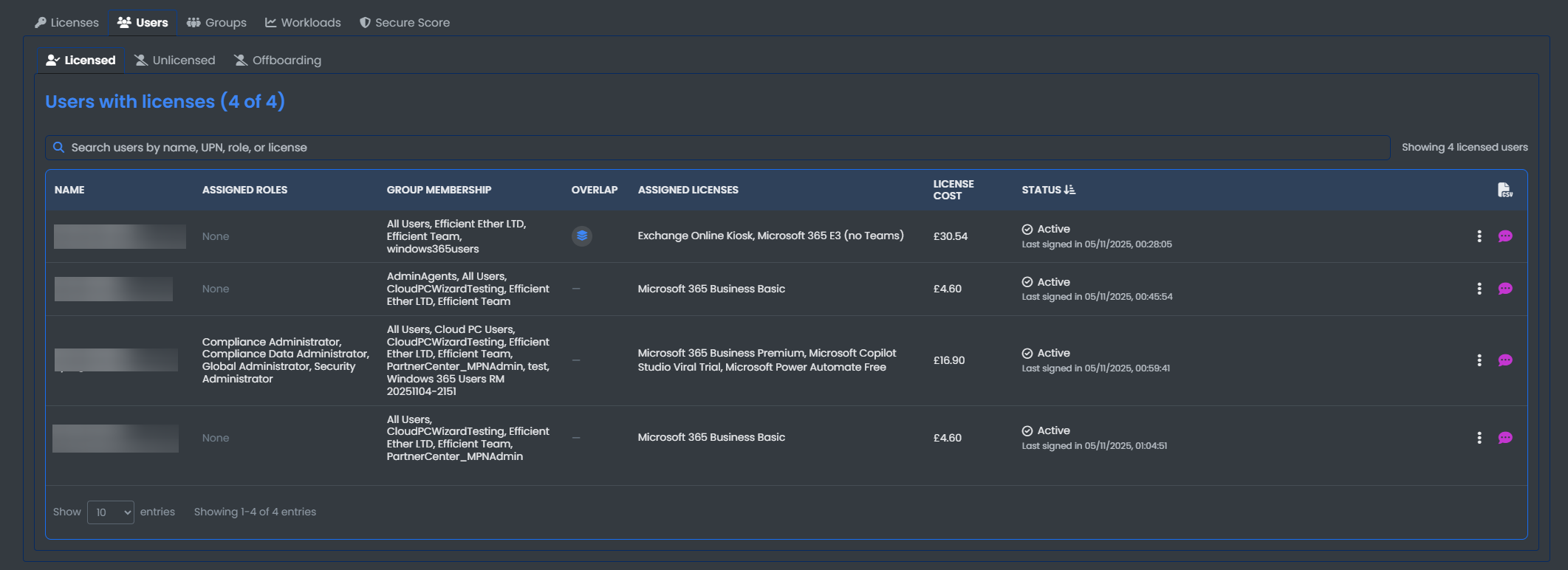
- Name: The name of the user and their email.
- Assigned roles: Any assigned roles to the user account within Microsoft 365.
- Group Membership: The Azure groups the user is apart of.
- Assigned Licenses: All of the assigned licenses for the user.
- License cost: The total cost of all the licenses assigned to the user.
- Status: The current status of the license.
Unlicensed Users
View the current users in your organization that do not have a license assigned to them:
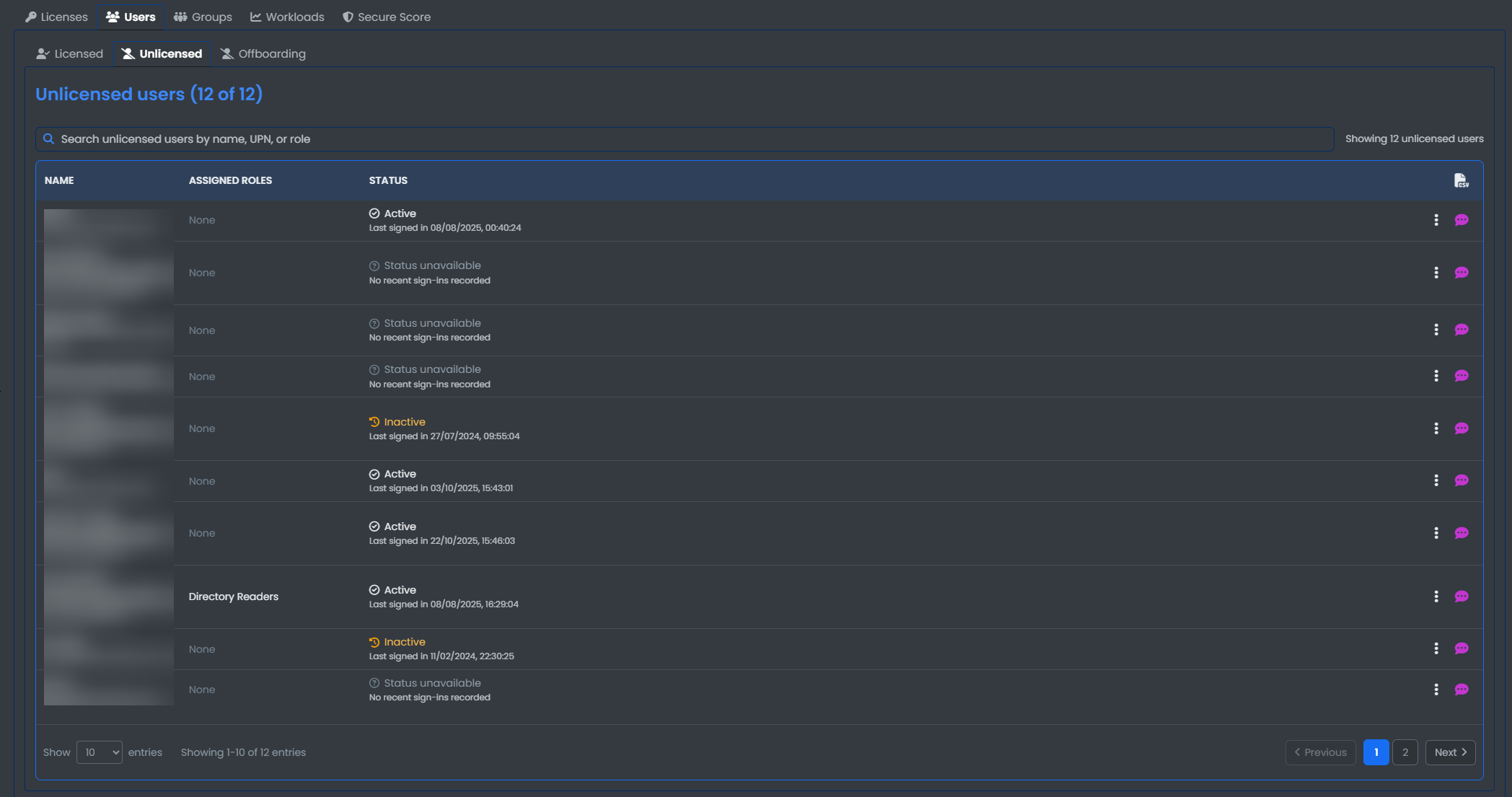
- Name: The name of the user and their email.
- Assigned roles: Any assigned roles to the user account within Microsoft 365.
- Status: The current status of the license.
Offboarding
Offboarding allows for a user to have the below actions carried out to their account:
- Account:
- Revoke active sessions: Force sign-out by invalidating refresh tokens.
- Disable sign: Disables the accounts sign in.
- Reset Password: Generates a new random password.
- Reset MFA: Delete all multi-factor authentication methods.
- Mailbox & calendar:
- Enable automatic replies: Inform senders that the mailbox is no longer monitored.
- Cancel upcoming meetings: Delete events owned by the user in the selected timeframe.
- Access:
- Remove admin role assignments: Remove any admin role assignments.
- Remove from Microsoft 365 groups: Detach the user from Teams and group memberships.
- Remove Licenses: Strip Microsoft 365 SKU assignments.
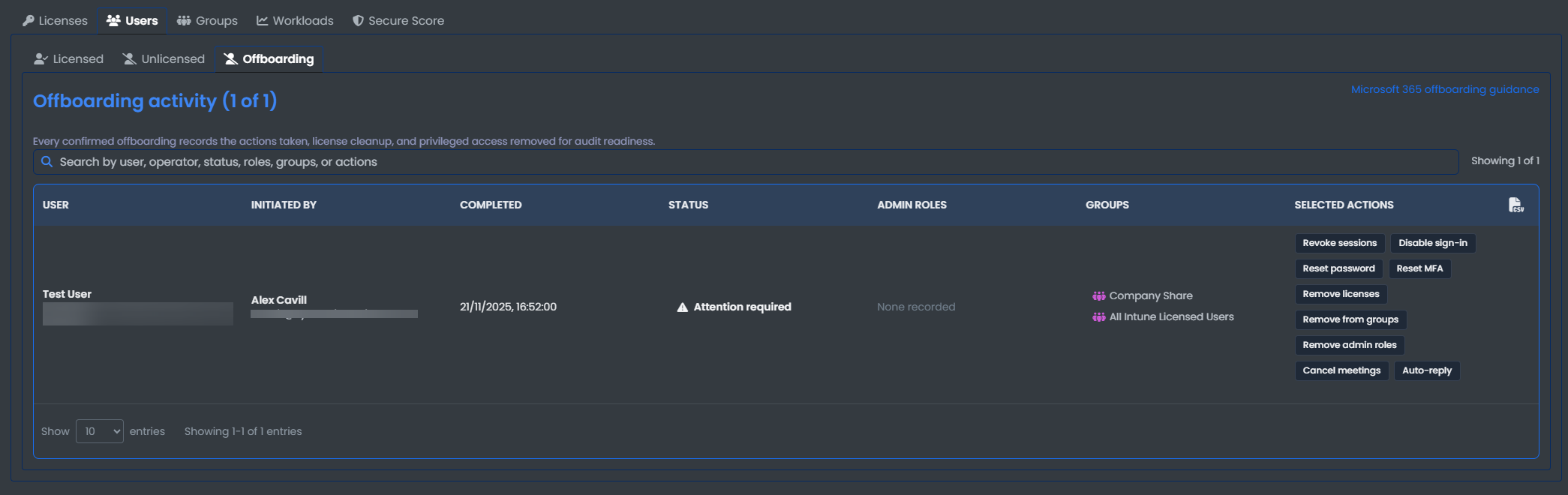
Offboarding activities
The Offboarding activity page contains every confirmed offboarding records, the actions taken, license cleanup, and privileged access removed for audit readiness.
Groups
View all of the groups inside of your Azure tenant.
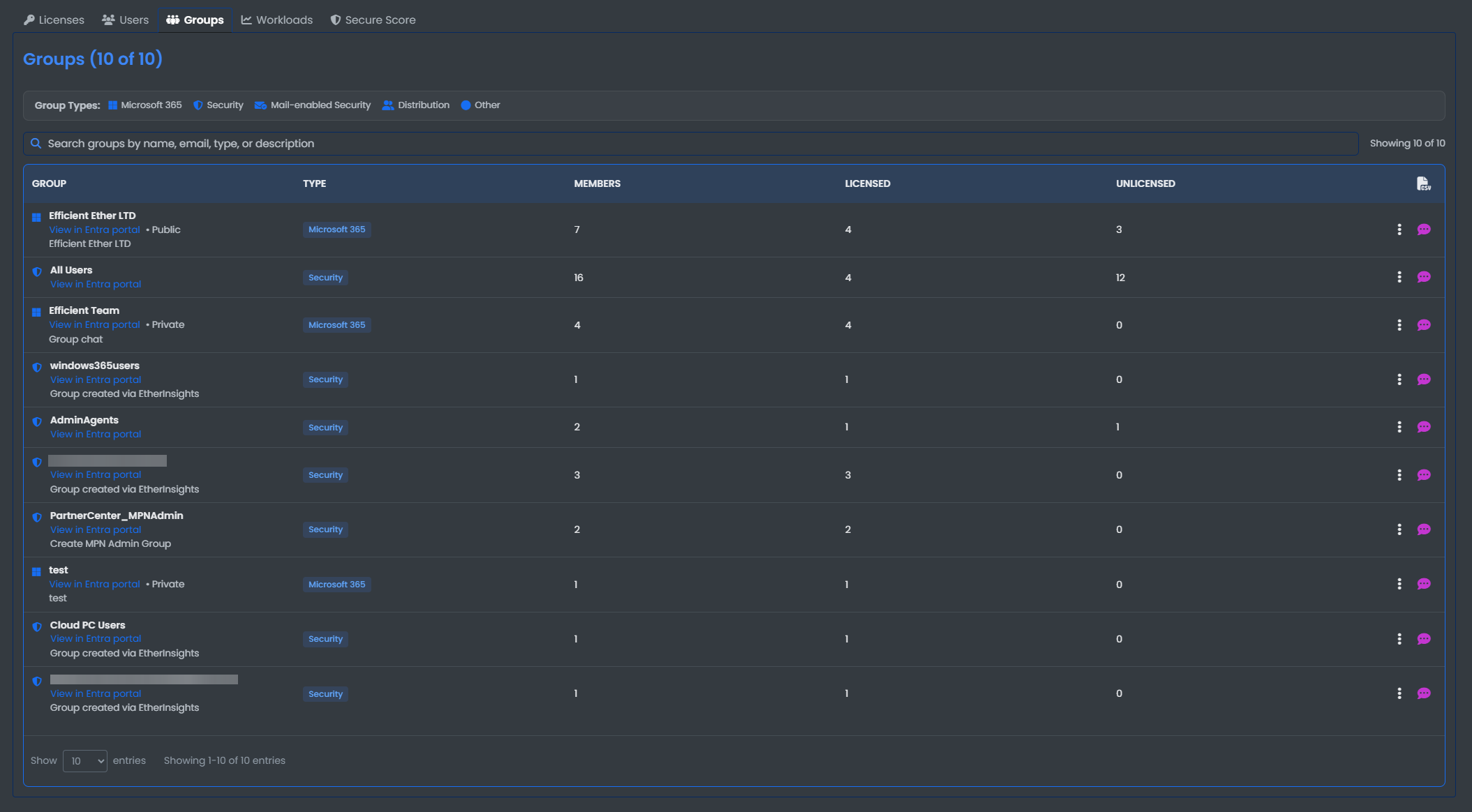
View the below:
- Group: Name of the Group and view in Entra portal.
- Type: The type of group.
- Members: The amount of members inside of the group.
- Licensed: The amount of licenced users inside of the group.
- Unlicensed:: The amount of unlicensed users inside of the group.
Group Actions
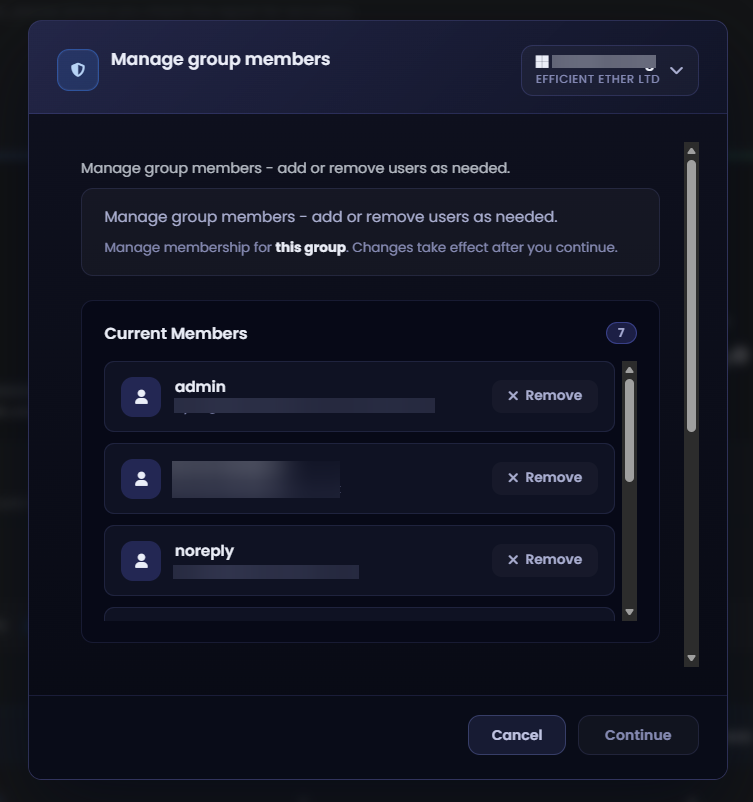
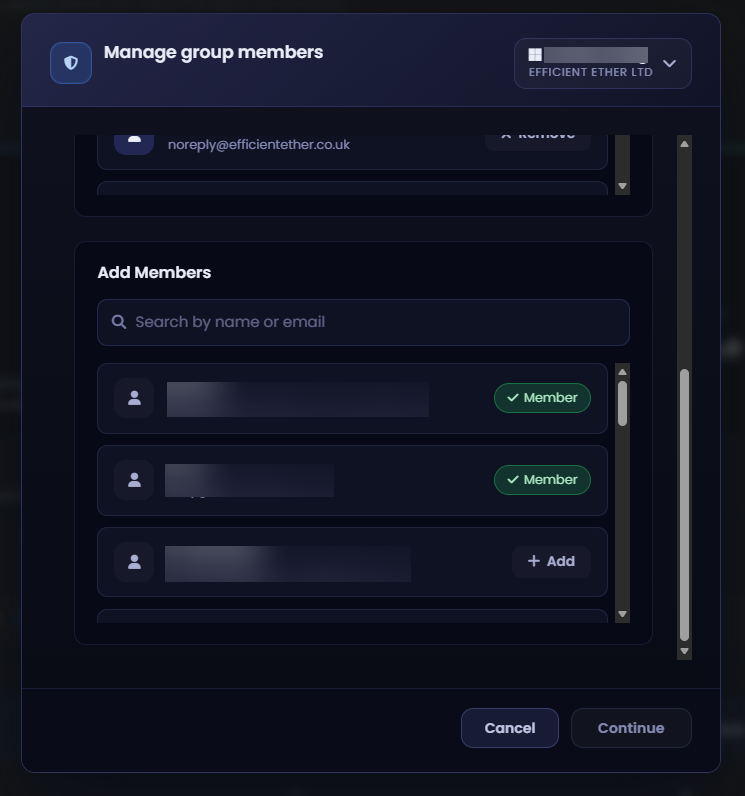
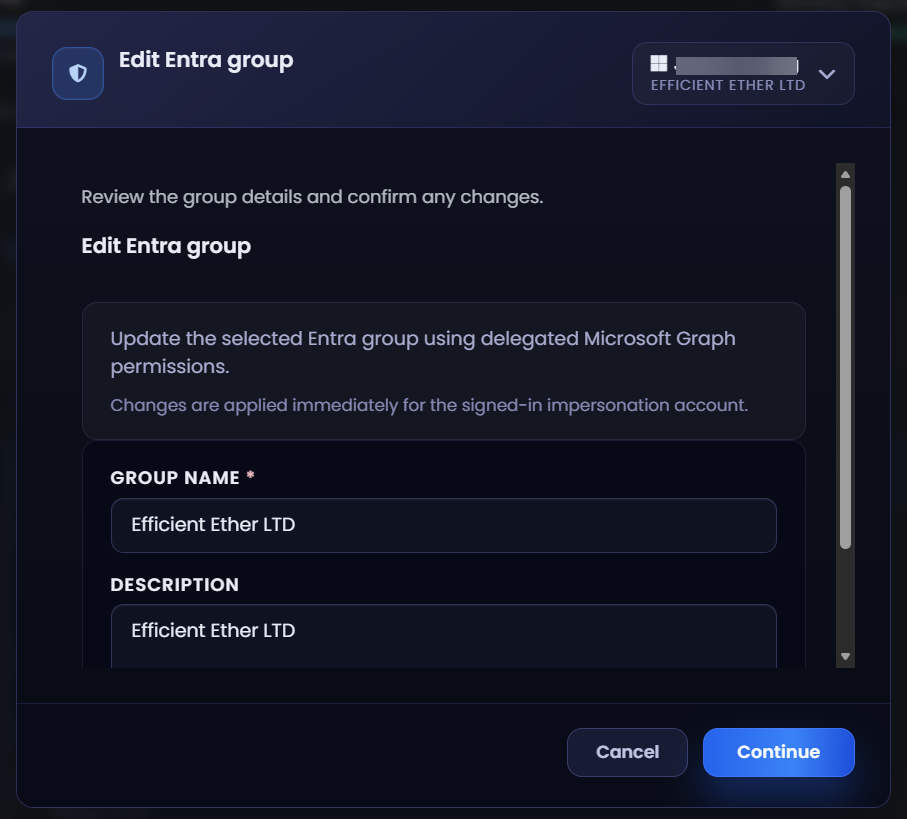
Select the three dots to Manage members of a group or edit a group.
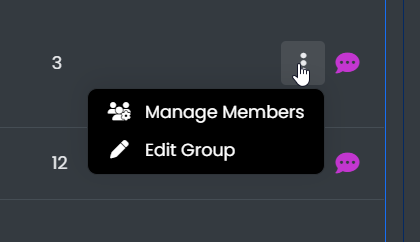
Manage the group members - add or remove users as needed.
Edit Entra Group - Review and edit group details
Workloads
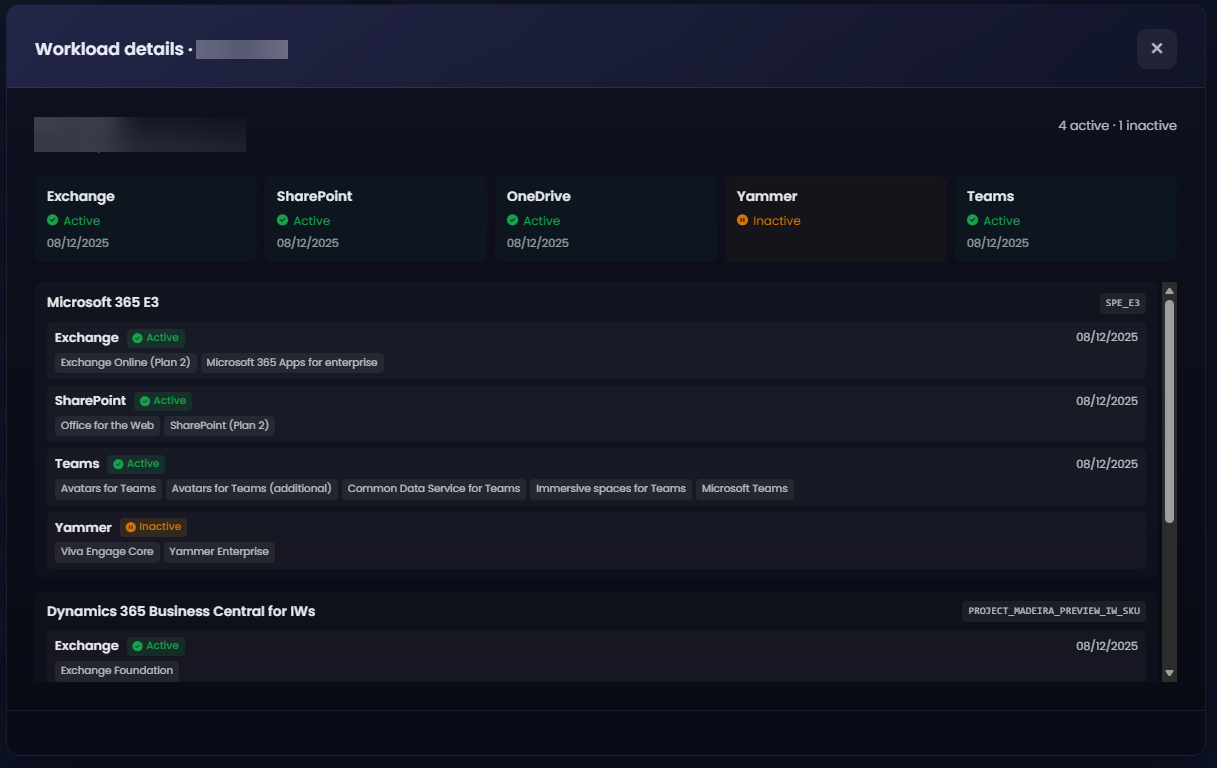
The workloads tab shows Recent activity for Teams, OneDrive, Sharepoint and other workloads.
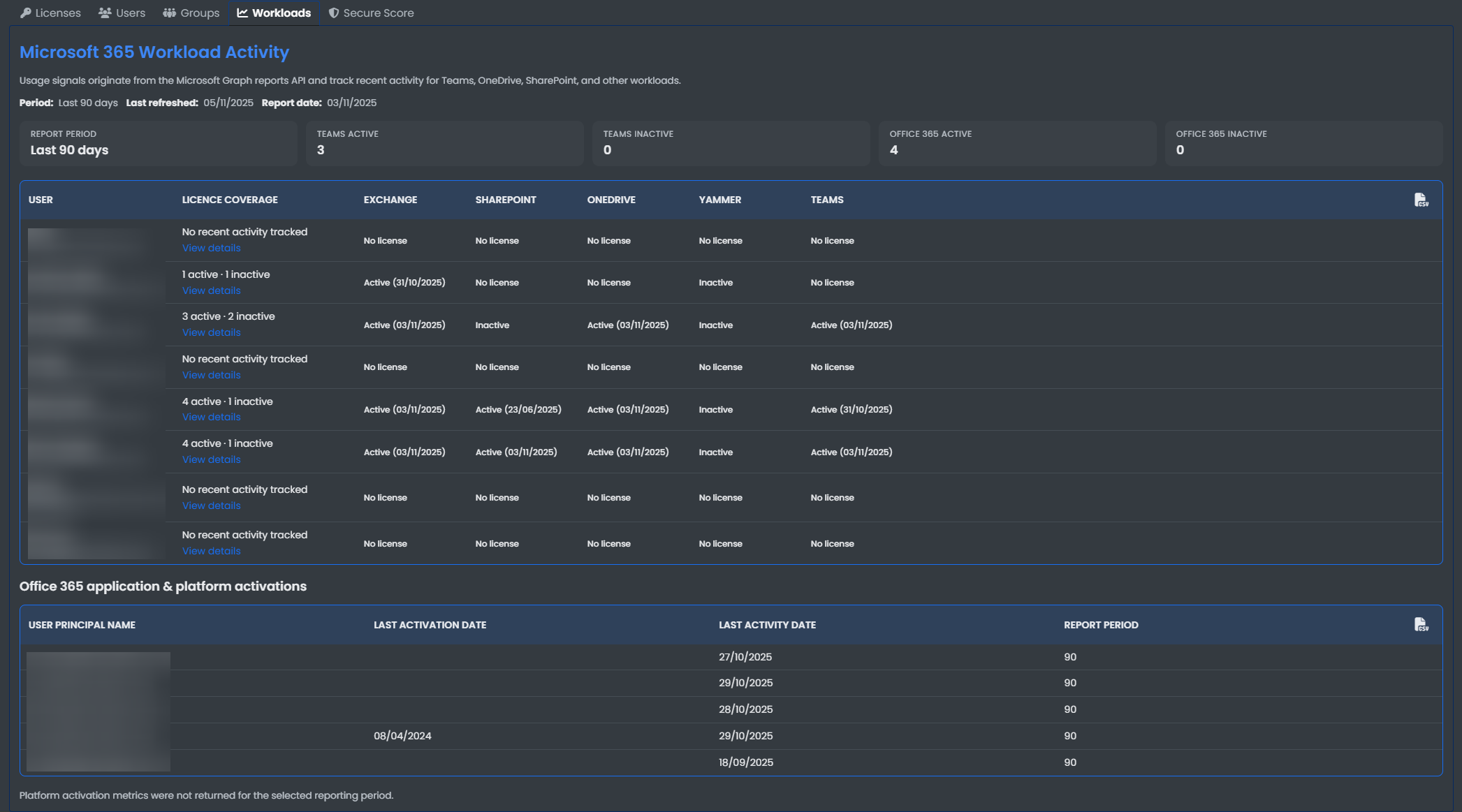
Hit view details to view the individual workloads and the licenses active.
Secure Score
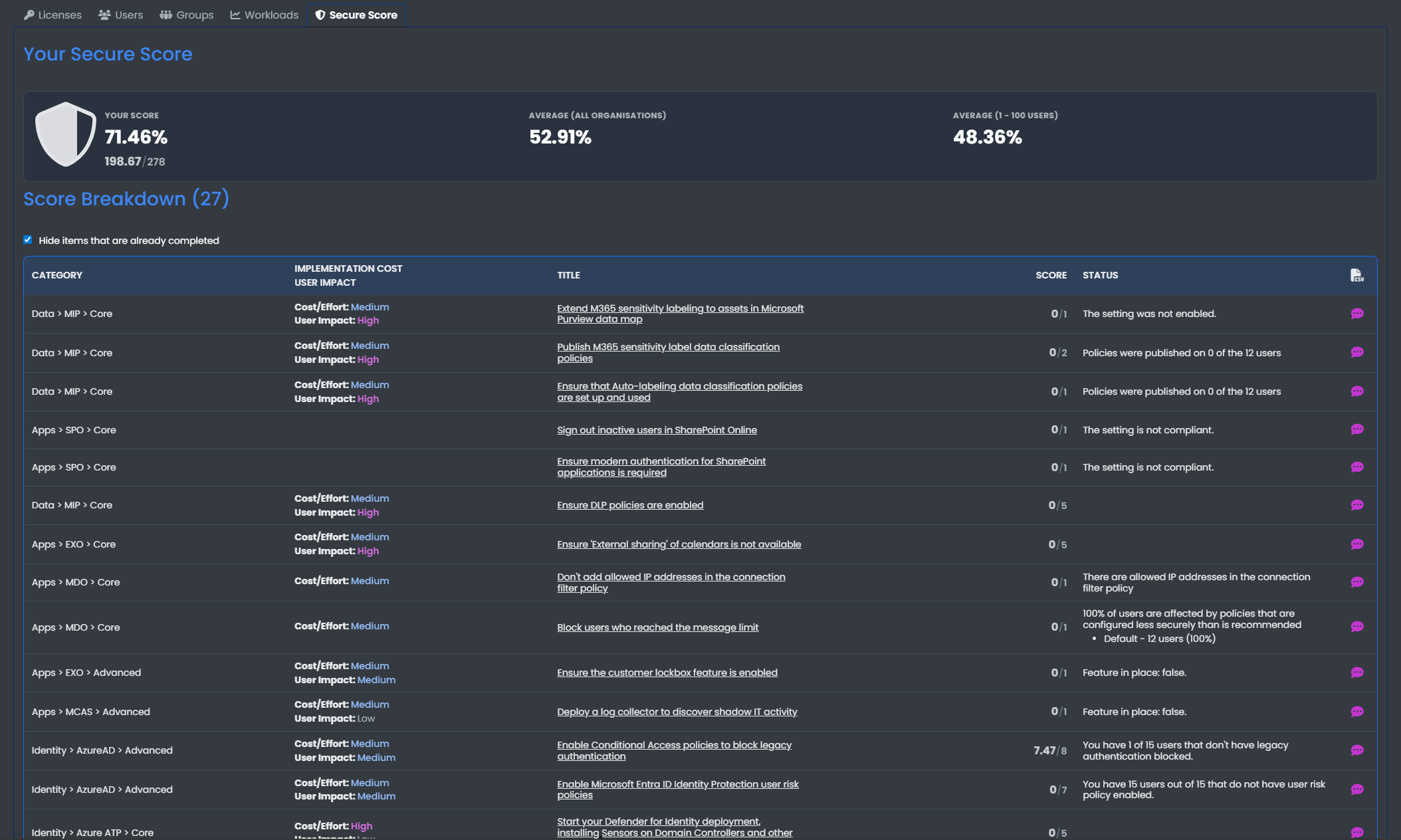
View your Security score highlighting any Critical and Low Priority actions.
View the implementation cost/effort of each action and the User impact